


How to Write & Submit a Google Review: Step-by-Step
- Step-by-Step Guide for Google Reviews

Home page » How to Write & Submit a Google Review: Step-by-Step

Would you like to write a Google review? In this guide, we show you step-by-step – with screenshots and video – how to submit a review.
Why Google Reviews Are So Important
Nowadays, online reviews are the digital equivalent of word-of-mouth. Statistics show that around 93% of consumers read online reviews before making a purchase decision. For businesses, these stars are crucial for ranking in local search and building trust. Writing an authentic Google review not only helps the business but also serves as guidance for the entire community.
Prerequisites: What You Need for a Google Review
Before you start, two basic conditions must be met:
- Google Account: An active Google account is mandatory. If you don’t have one, you can find everything you need to know about submitting a Google review without an account here.
- Business Profile: The business in question must have a Google Business Profile to be listed on Google Maps.
Did you know? How do Google reviews work in detail? A look behind the scenes helps to better understand the process.
Submitting a Google Review on Desktop (PC/Mac)
On a computer, you have the best overview for submitting a detailed review on Google. Follow these steps:
→ Step 1: Open Google Maps and search for the business

Navigate to Google Maps and enter the business name and location into the search bar.
→ Step 2: Navigate to the review section
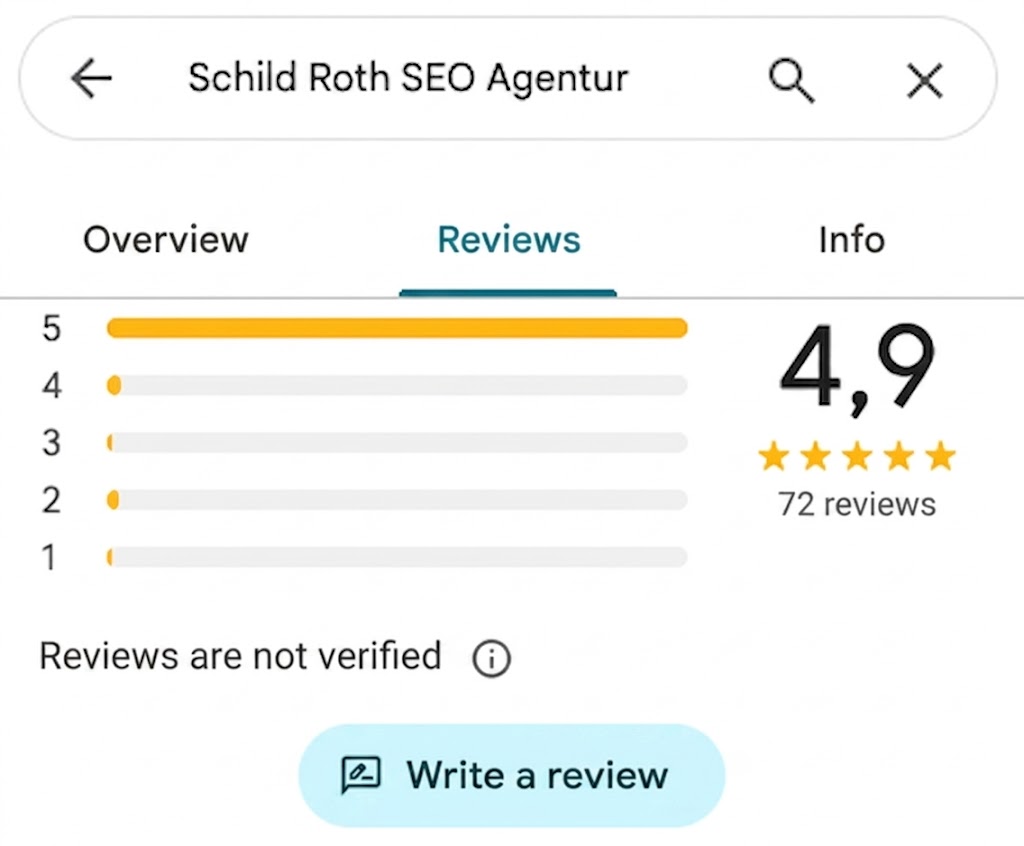
In the business card in the left column, scroll down until you see the “Reviews” section. There you will find the button “Write a review”.
→ Step 3: Assign stars and write a review
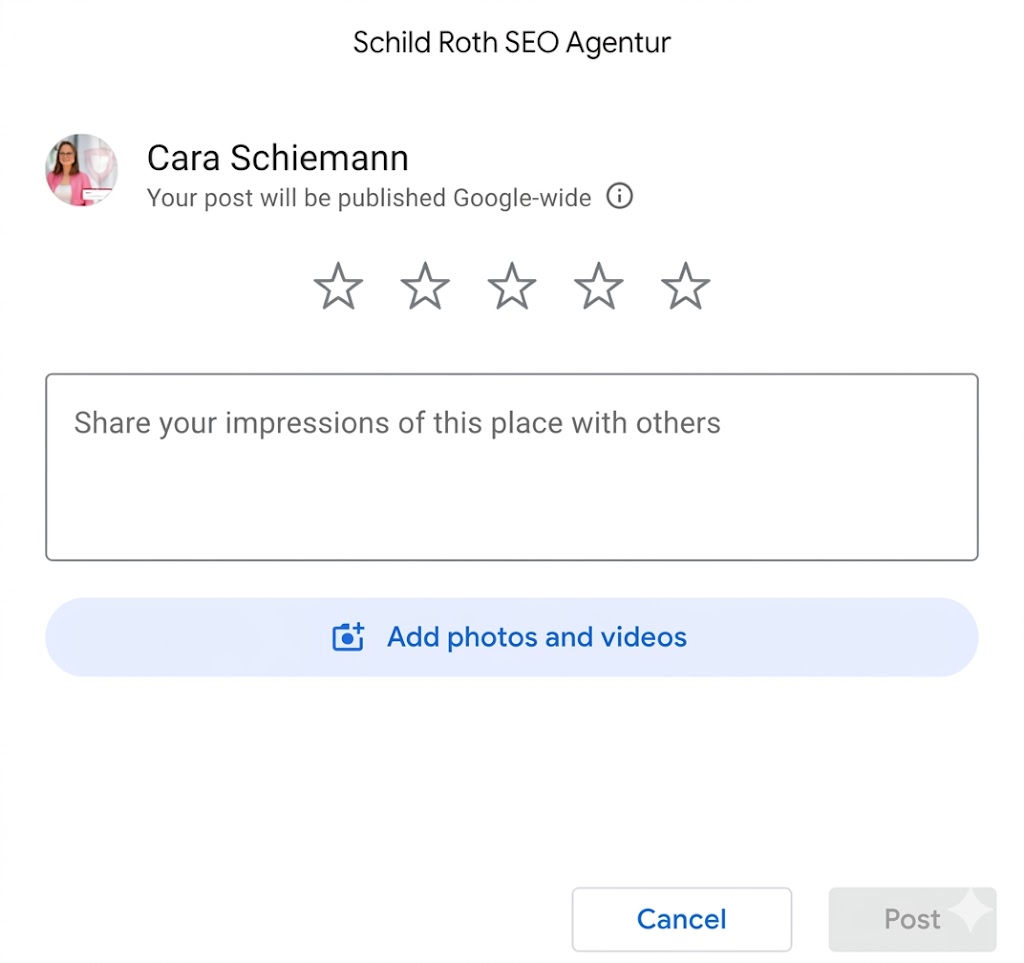
A window will open. First, assign 1 to 5 stars. Use the text field to describe your experience in detail. Tip: The more specific you are about what you liked (or didn’t like), the more helpful the review will be for others.
→ Step 4: Publish review
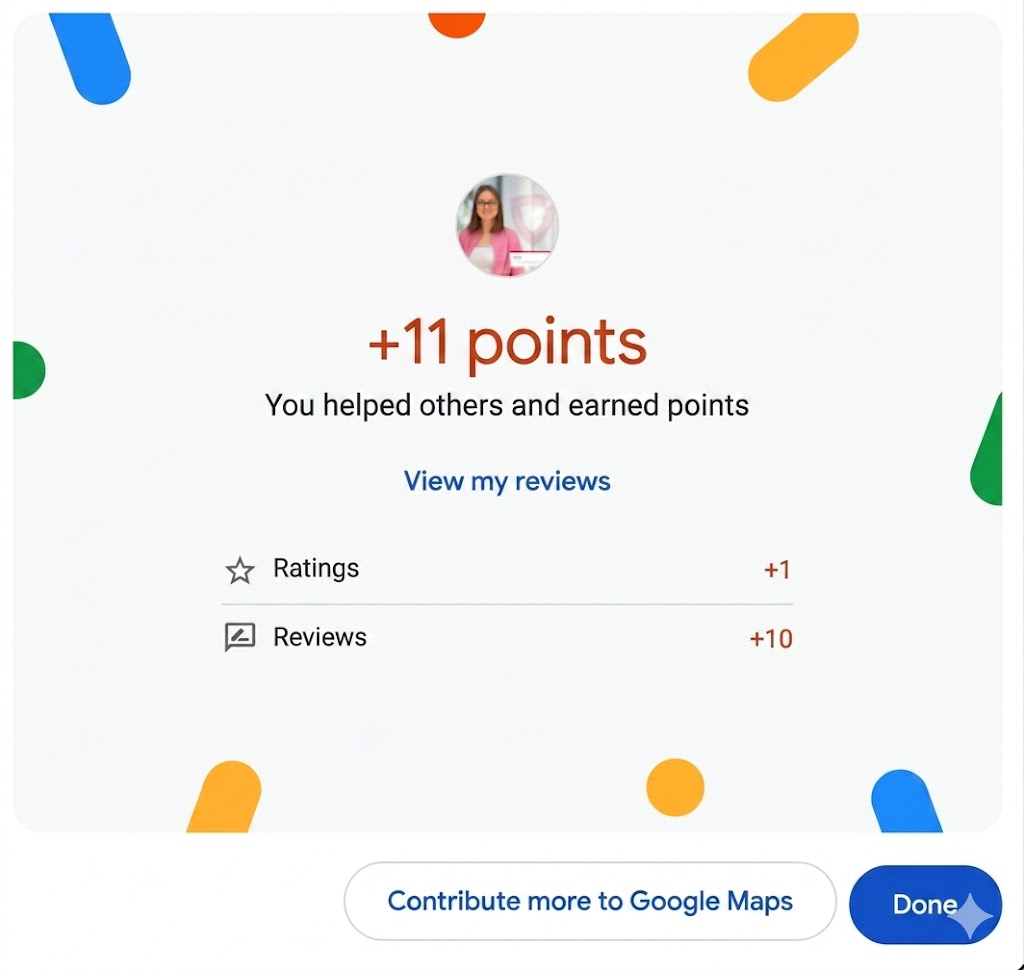
Click “Post” or “Publish”. Your review will now be checked and is usually publicly visible immediately or after a short time.
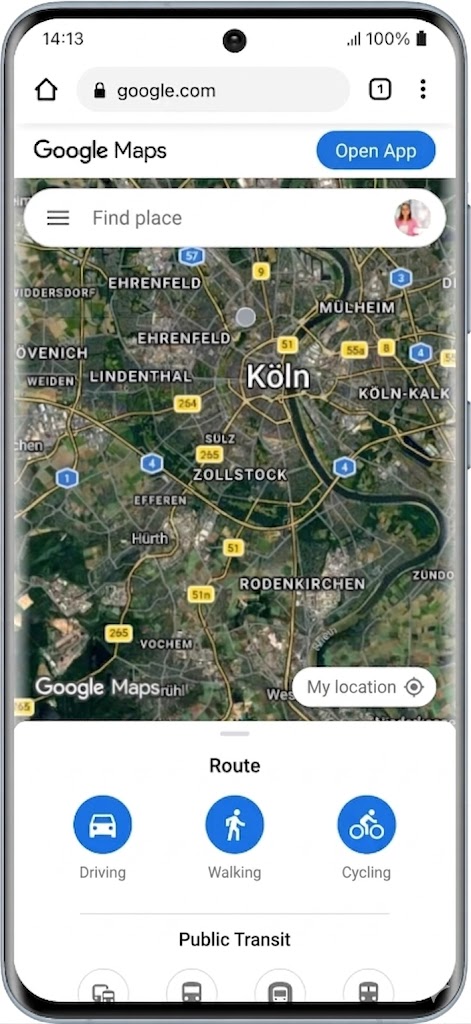
Submitting a Google Review on Mobile (Android)
Since 84% of searches are mobile, app usage is the standard way.
- Open the Google Maps app on your Android device.
- Search for the business and tap its name.
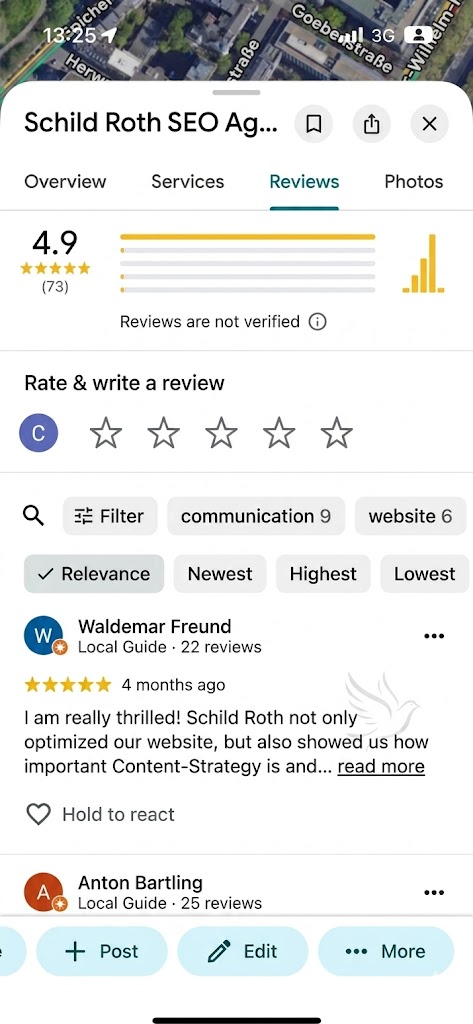
- Tap the “Reviews” tab and assign your stars.
- Add text and optional photos, then tap “Post.”
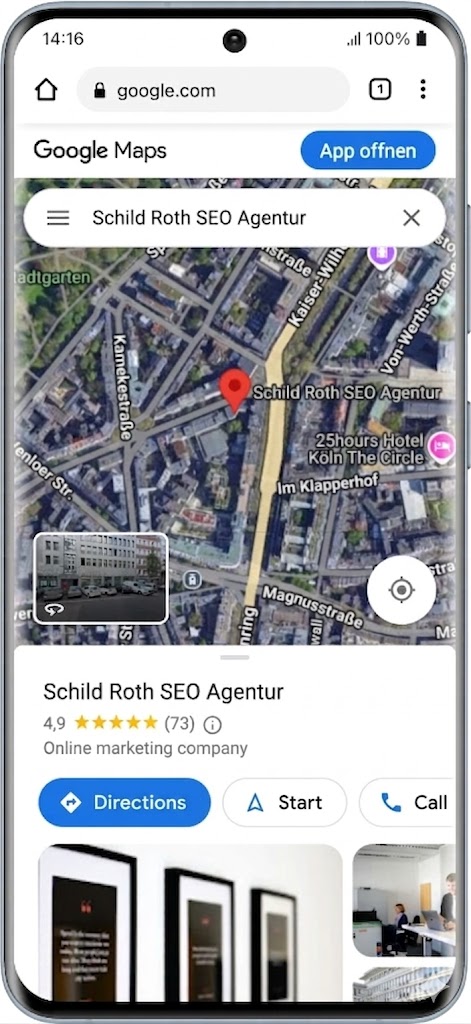
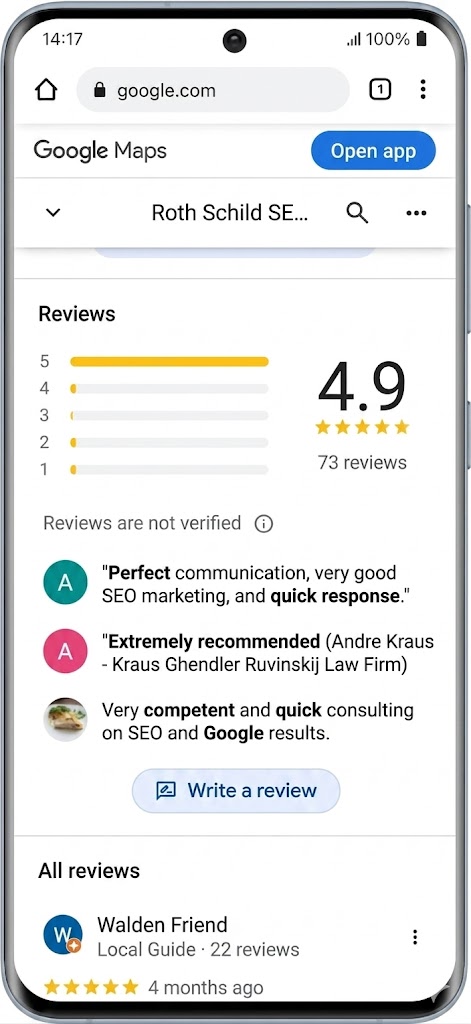
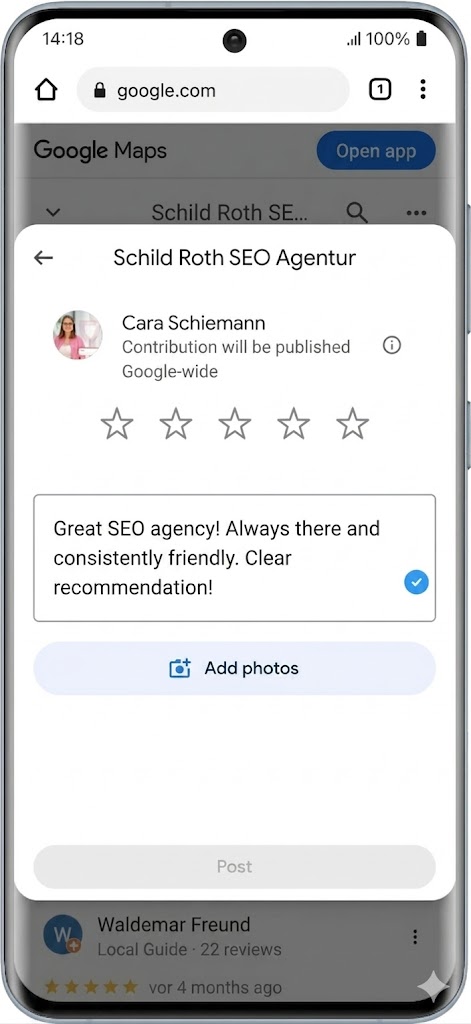
Submitting a Google Review on iPhone (iOS)
The process on iPhone is almost identical, but uses the iOS-specific interface.
- Launch the Google Maps app (iOS).
- Search for the desired service provider.
- Scroll down to the “Rate and review” section.
- Select the star rating and write your Google Maps review.
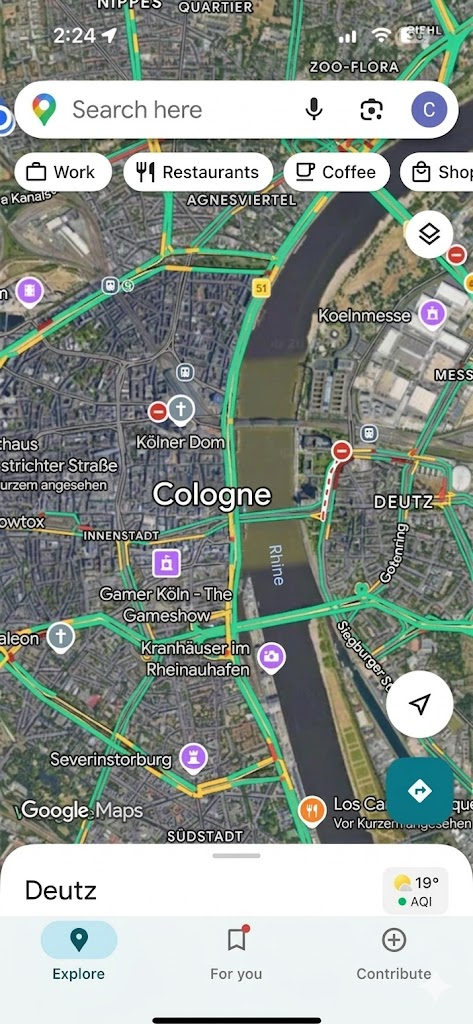


Submitting a Google Review – Video Guide
This video explains step-by-step how to submit a Google review:
- Open Google Maps and search for the business to be reviewed
- Under Reviews, select the number of stars and optionally write a text
- Submit review
5 Tips for a Helpful Google Review
To ensure your review truly adds value, consider these points:
- Be specific: Name specific products or services you used.
- Describe your experience: Tell a short story instead of just writing “Great.”
- Be fair: Even when criticizing, remain objective and constructive.
- Add photos: Images significantly increase credibility and provide visual assistance to other users.
- Review promptly: Write the review while your impressions are still fresh.
Ready-made templates? Find review samples here for various industries.
Edit or Delete a Google Review Later
Did you make a typo, or has the business responded to your criticism? You can edit your Google reviews. To do this, simply go to “Your contributions” in Google Maps and select “Reviews” to make changes or delete the entry entirely.
Don’t want to create a Google account? You still have these options.
Ready-made text templates for tradespeople, doctors, restaurants, and more.
Remove your own or others’ reviews – what’s possible?
Change or update your submitted review later.
All you need to know: Who can review, what counts, how stars are calculated.
Professionally request reviews – with email templates.
Strategies and tools for more and better reviews.
ReviewBird: for more Google reviews
Nothing works better than an automated SMS review request – exactly 30 minutes after the appointment, at the moment of absolute satisfaction.
With ReviewBird you get up to 10x more genuine Google reviews – no fakes, no extra effort.
FAQ
How can I submit a Google review?
Open Google Maps, search for the business, click “Write a review,” assign stars, and optionally add text.
Do I need a Google account to leave a review?
Yes, a Google account is a prerequisite. Creating one is free and only takes a few minutes. Learn more under Submit a Google Review Without an Account.
Can I submit a Google review on my phone?
Yes, you can submit reviews via the Google Maps app on Android and iOS. The steps are similar to desktop.
How long does it take for my Google review to become visible?
Typically, a review is visible immediately. In individual cases, Google may review the submission, which can take 1–3 days.
Can I change my Google review later?
Yes, you can edit or delete your review at any time. To do this, go to “Your contributions” in Google Maps.

Founder, CEO ReviewBird
Timothy Scherman is an experienced SEO expert and digital marketing consultant with over ten years of expertise in online marketing. As the founder of Doc Marketing, he supports doctors and medical facilities in increasing their visibility and successfully acquiring new patients.
Founder, CEO
ReviewBird


